Syntax Palette
Personalize your coding experience with built-in color palette presets, or create your own custom palettes to match your preferred coding style.
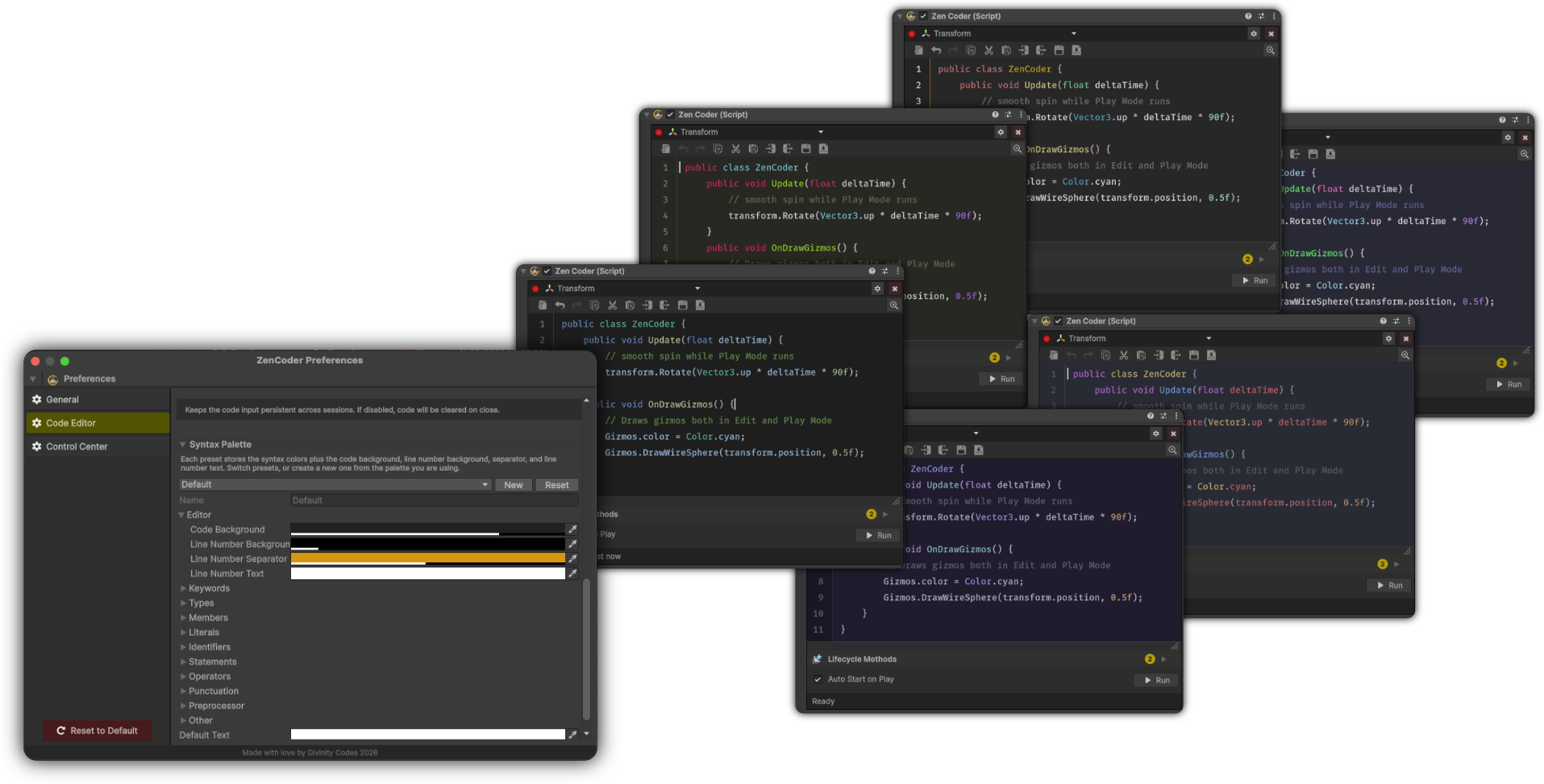
Colors are adjusted in ZenCoder → Preferences → Code Editor → Syntax Palette. Open Preferences from the gear menu on a ZenCoder component, or from the menu in Control Center.
1.2.0 · Shoshin
Introduced in the v1.2.0 release.
Choose a preset
Each preset stores the syntax colors plus the code background, the line number background, the separator, and the line number text. Switching presets updates the editor immediately.
- VS Code is selected the first time you open Preferences
- ZenColors is ZenCoder's own palette
- Monokai, Dracula, One Dark, Darcula, Nord, Catppuccin, and Solarized
Pick one from the menu at the top of Syntax Palette. The Inspector editor follows that choice.
Adjust the colors
Under Editor:
- Code Background
- Line Number Background
- Line Number Separator
- Line Number Text
Under the syntax groups:
- Keywords
- Types
- Members
- Literals
- Identifiers
- Statements
- Operators
- Punctuation
- Preprocessor
- Other
- Default Text
- Repl Text
Edits apply as you change them, so you can compare the editor beside the Preferences window.
Make your own
New copies the palette you are using and selects the copy. Give that copy a name, then keep editing. Custom palettes are the ones you can rename.
Reset restores a built-in preset to its original colors. Built-in names stay fixed.
Delete removes a palette you created. ZenCoder asks before it goes. Built-in presets stay in the list.
Live Variable blocks keep their own block color from the Code Editor preferences. Syntax Palette colors the code itself.