Live Variables
Live Variables let you reference Unity objects in your ZenCoder scripts with a short, memorable name - like @Player or @EntryPrefab - instead of hunting for references every time you write code.
Once bound, that name appears as a colored block in the editor, shows up in suggestions as you type, and resolves automatically when your script runs.
Try it
Click a pill above to copy the name, then paste it into a ZenCoder script after typing @.
Live Demo
Live Variables in action
Drag a Prefab or component onto ZenCoder, then use named blocks like @Apple with member suggestions as you type.
Why use them?
| Benefit | What you get |
|---|---|
| Faster scripting | Drop a Prefab or component once, then reuse it by name. |
| Clearer code | @SpawnPoint is easier to read than digging through scene references. |
| Safer edits | Known names show as visual blocks so you can spot them at a glance. |
| Smart suggestions | After a Live Variable name, ZenCoder suggests useful members (position, name, components, and more). |
How to create a Live Variable
Drag and drop
- Select a GameObject that has a ZenCoder component, or open the ZenCoder Control Center.
- Drag a Prefab from the Project window onto the ZenCoder area (Inspector or Control Center).
- When the highlight turns green, drop it. ZenCoder creates a Live Variable and gives it a name based on the object.
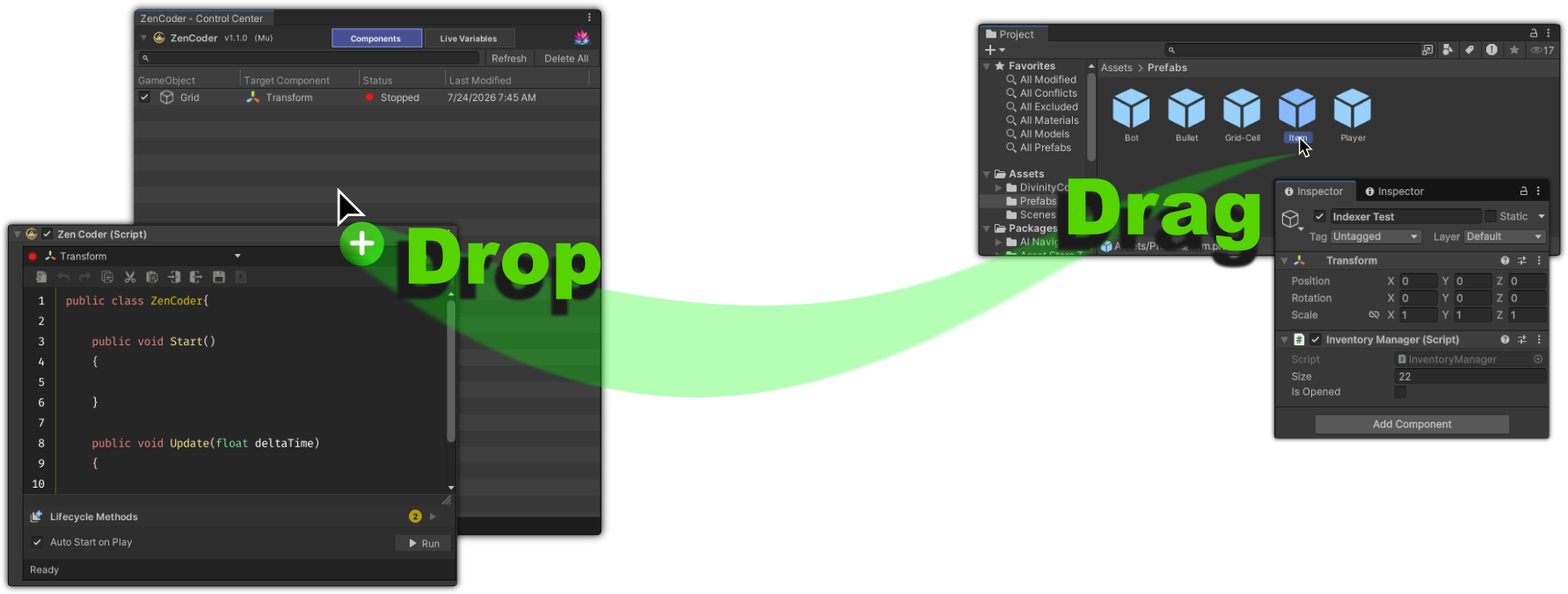
You can also bind components from the scene - but only while Unity is in Play Mode.
| What you drag | When it works |
|---|---|
| Prefab from the Project | Anytime |
| Component / object from the scene | Play Mode only |
Red highlight
If the drop highlight is red, that object isn’t supported in the current mode.
Prefabs vs components
Saved with ZenCoder. Still available after you close Unity or leave Play Mode.
Best for spawn points, UI roots, and shared assets you reuse often.
Temporary for the current Play session. Cleared when you stop Play Mode.
Best when you only need a live scene object while testing.
Using Live Variables in your script
Type @ followed by the variable name. As soon as ZenCoder recognizes it, the name becomes a block (pill) with an icon.
You can:
- Store the object in a local variable
- Read properties (position, name, active state, …)
- Call methods on the object
- Assign a new object to the Live Variable
You don’t need to wire anything in the Inspector for each script - the name is enough.
// Conceptual examples
var player = @Player;
@SpawnPoint.transform.position = Vector3.zero;
Debug.Log(@EntryPrefab.name);
Suggestions while you type
- Type
@to see all your Live Variables - Keep typing to filter the list
- After a name, type
.to see members for that object (fields, properties, methods) - Use the arrow keys to move, Enter to accept, Esc to close
The suggestion list shows icons and short descriptions so you can pick the right item quickly.
Managing Live Variables
Open Tools → DivinityCodes → ZenCoder - Control Center, then choose the Live Variables tab.
There you can:
- Browse all bindings (name, type, Prefab/Component, Bound/Missing)
- Search the list
- Refresh
- Clear all (confirmation depends on your preferences)
- Ping, select, or remove an entry
In the code editor, you can also right-click a Live Variable block to ping, select, or remove it.
Appearance
- Live Variable blocks use the Live Variable Block Color from ZenCoder Preferences (Code Editor section)
- Inside a commented line (
//), blocks and text stay muted so comments still look like comments
Tips
- Bind once, use often - especially Prefabs you spawn or reference in many scripts
- Prefer clear names; ZenCoder sanitizes dropped names into something code-friendly
- If a block shows as Missing, the original Prefab or Play Mode object is gone - drop it again or remove the entry from Control Center
- Narrow Control Center windows still keep the Live Variables tab readable; labels may shorten slightly
Common questions
Why can’t I drop a scene component?
Components only bind in Play Mode. Prefabs can be dropped anytime.
Why don’t I see a colored block?
The name isn’t bound yet, or the spelling doesn’t match. Check the Live Variables tab, then type @ to pick from the list.
Does this replace the Target field on ZenCoder?
No. Live Variables are extra named references you can use alongside your normal ZenCoder target and script.
Will my Prefab Live Variables survive a restart?
Yes. Component Live Variables will not - bind those again in Play Mode when you need them.