Getting Started with ZenCoder
ZenCoder is designed to feel effortless. No boilerplate. No extra setup. Just attach, write, and run.
Get ZenCoder
ZenCoder is available on the Unity Asset Store. Acquire it first, then import the package into your project.
Import
After purchase, open Window → Package Manager, select My Assets, find ZenCoder, and click Download / Import.
Add ZenCoder to any GameObject
You can add ZenCoder just like any Unity component - no special setup needed.
Hierarchy
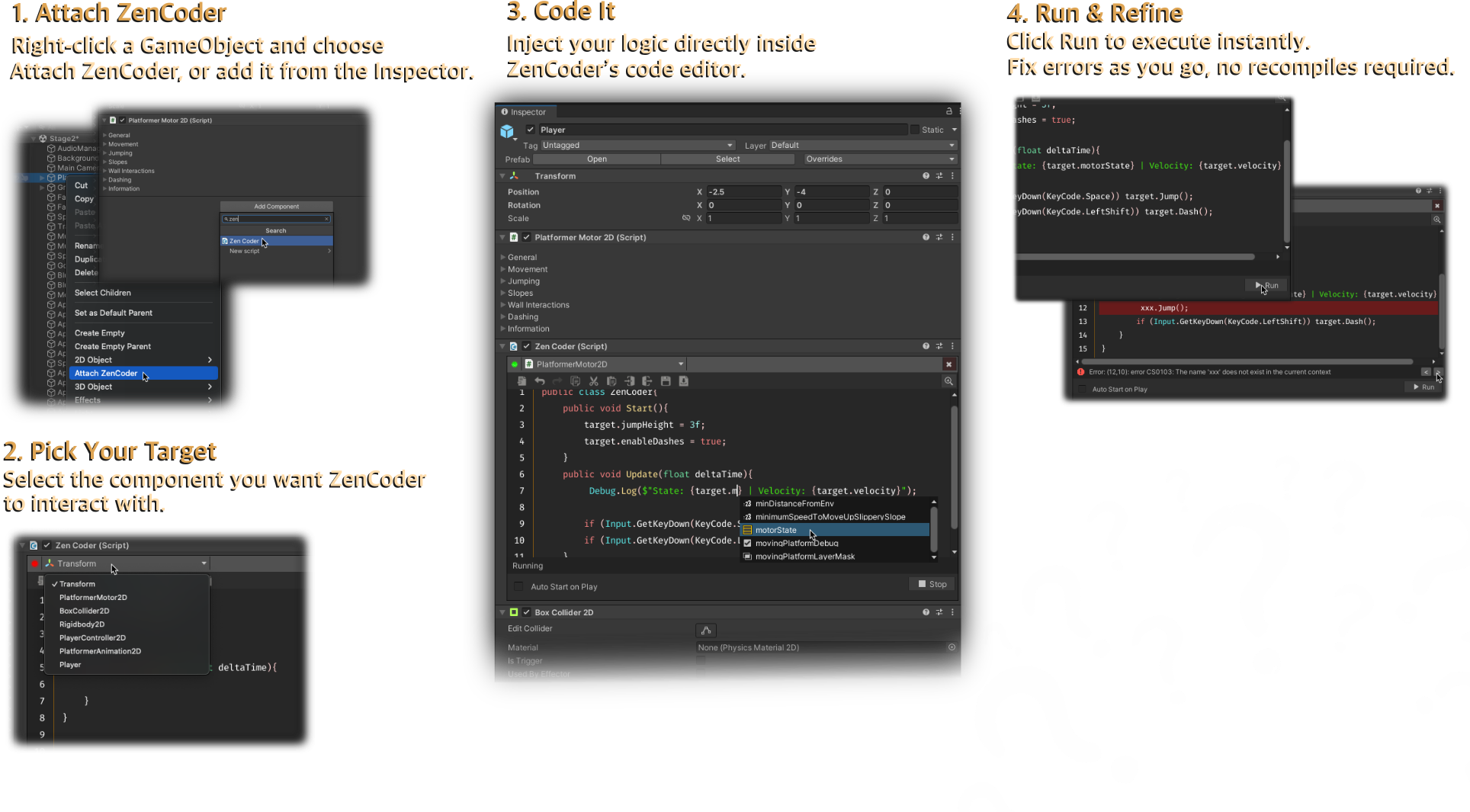
Right-click any GameObject → Attach ZenCoder
Inspector
Select your GameObject → Add Component → search for ZenCoder
That’s it. The IDE panel appears instantly in the Inspector.
Write code directly in the Inspector
When you add ZenCoder, you’ll see a live code editor ready to go - with syntax highlighting, line numbers, and full IntelliSense.
Write C# directly inside the Inspector and execute it in real time.
public class ZenCoder {
    public void Start() {
        // Initialization logic
        Debug.Log("ZenCoder started");
    }

    public void Update(float deltaTime) {
        // Frame-based logic
        transform.Rotate(Vector3.up * deltaTime * 90f);
    }

    public void OnDrawGizmos() {
        // Draws gizmos both in Edit and Play Mode
        Gizmos.color = Color.cyan;
        Gizmos.DrawWireSphere(transform.position, 0.5f);
    }
}
What you get
- Syntax highlighting, line numbers, and smart auto-completion
- Errors in the ZenCoder status bar, highlighted in the editor
- Instant runs - no recompilation or Play Mode restarts
- Scripts saved per-component for a clean, modular workflow
Lifecycle methods
ZenCoder supports a wide range of Unity lifecycle methods - from initialization (Awake, Start, OnEnable) to rendering (OnDrawGizmos, OnRenderObject), physics (OnCollisionEnter, OnTriggerStay2D), and more.
See the full reference: Lifecycle Methods →
Target components contextually
Each ZenCoder instance lets you select a target component from the same GameObject.
- The special
targetkeyword gives you full access to its fields, properties, and methods - You’ll get IntelliSense suggestions and deep reflection support
Bind objects with Live Variables
Need a Prefab or scene object by name? Drag it onto ZenCoder to create a Live Variable - then use it as @Player, @SpawnPoint, and so on.
Drag to bind, type @ to use - see the full Live Variables guide for details.
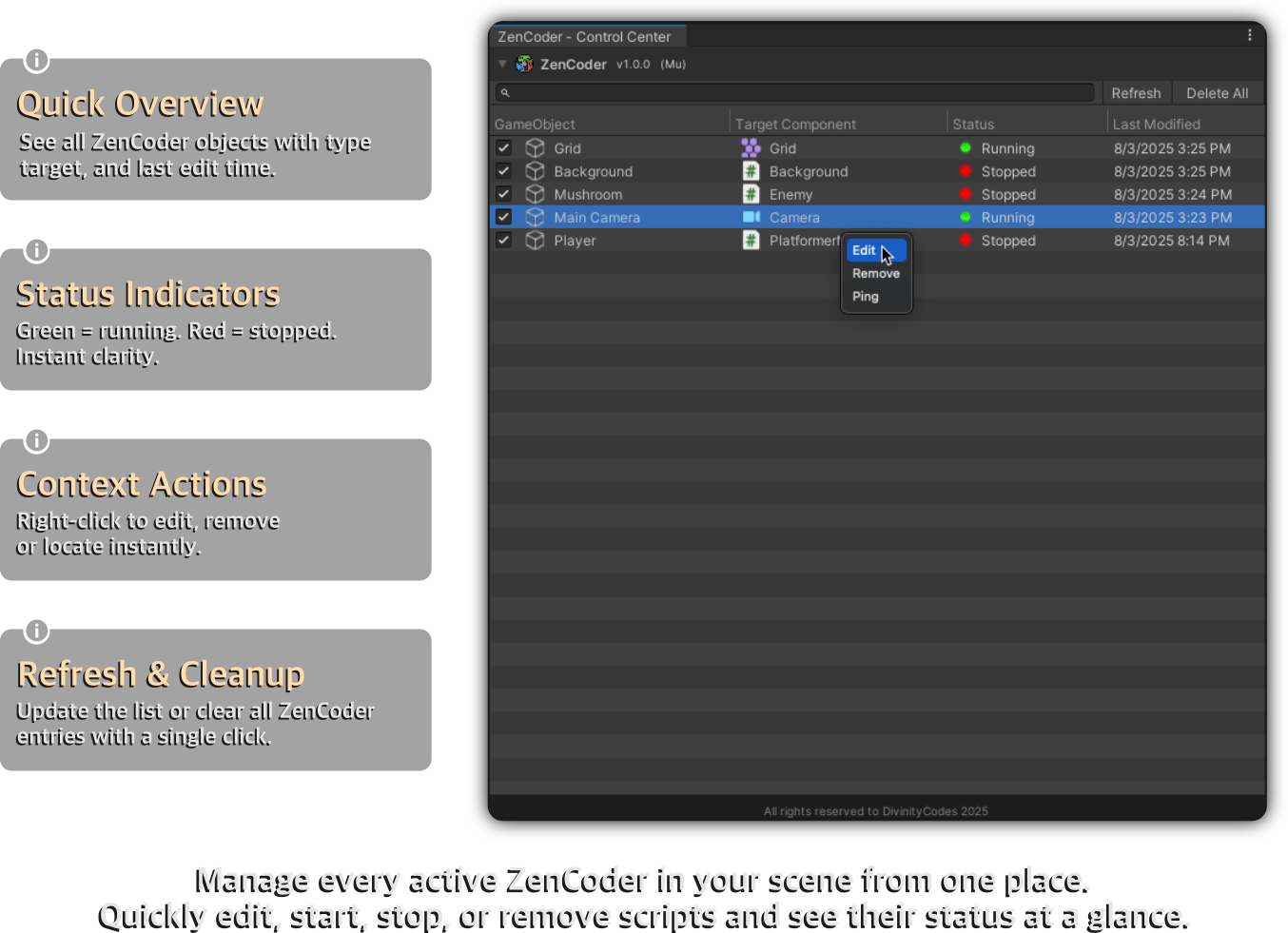
Manage everything in Control Center
To monitor and manage all active scripts:
Tools → DivinityCodes → ZenCoder - Control Center
The Control Center gives you:
- A full list of GameObjects using ZenCoder
- Target component overview
- Status indicators (Running / Stopped)
- One-click ping, select, or stop
- A Live Variables tab for all named bindings